Accessibility Features to Compare Before Buying a Phone or Computer
Compare phone and computer accessibility through real tasks, required apps, languages, accessories and support, then budget the complete usable setup.
On this page
- Describe the tasks the device must support
- Compare visual presentation and spoken access
- Check hearing and caption features in context
- Test alternative ways to control the device
- Check version, language and app compatibility
- Protect privacy during a demonstration
- Include accessories, setup and support in the price
- Keep a purchase record based on demonstrated needs
- Related guides
- Common questions
- Sources and references
An accessibility feature list is a starting point, not proof that a phone or computer will work well for a particular person. A device may offer a screen reader, captions and alternative controls while an essential app remains difficult to use. The best comparison starts with everyday tasks and tests the exact combination of hardware, software and support.
This guide uses Apple, Google and Microsoft documentation checked on 20 October 2026. Features can vary by model, operating-system version, language and region. It is a purchasing checklist rather than a clinical assessment or hands-on product ranking, and the example costs are fictional.
Describe the tasks the device must support
List a few important activities in practical terms: reading messages, joining a meeting, navigating a form, making a call or writing a document. Note the setting in which each task happens, such as bright light, a noisy room or a workspace shared with others.
Ask the person who will use the device which methods are comfortable and useful. Avoid choosing features solely from a diagnosis or assuming that everyone with a similar disability prefers the same interaction. Temporary needs and changing circumstances can also matter.
Separate essential tasks from optional improvements. A device that works beautifully for entertainment but cannot support a required work application may fail the most important requirement. Record the required apps, accessories and account arrangements before narrowing the hardware choice.
Compare visual presentation and spoken access
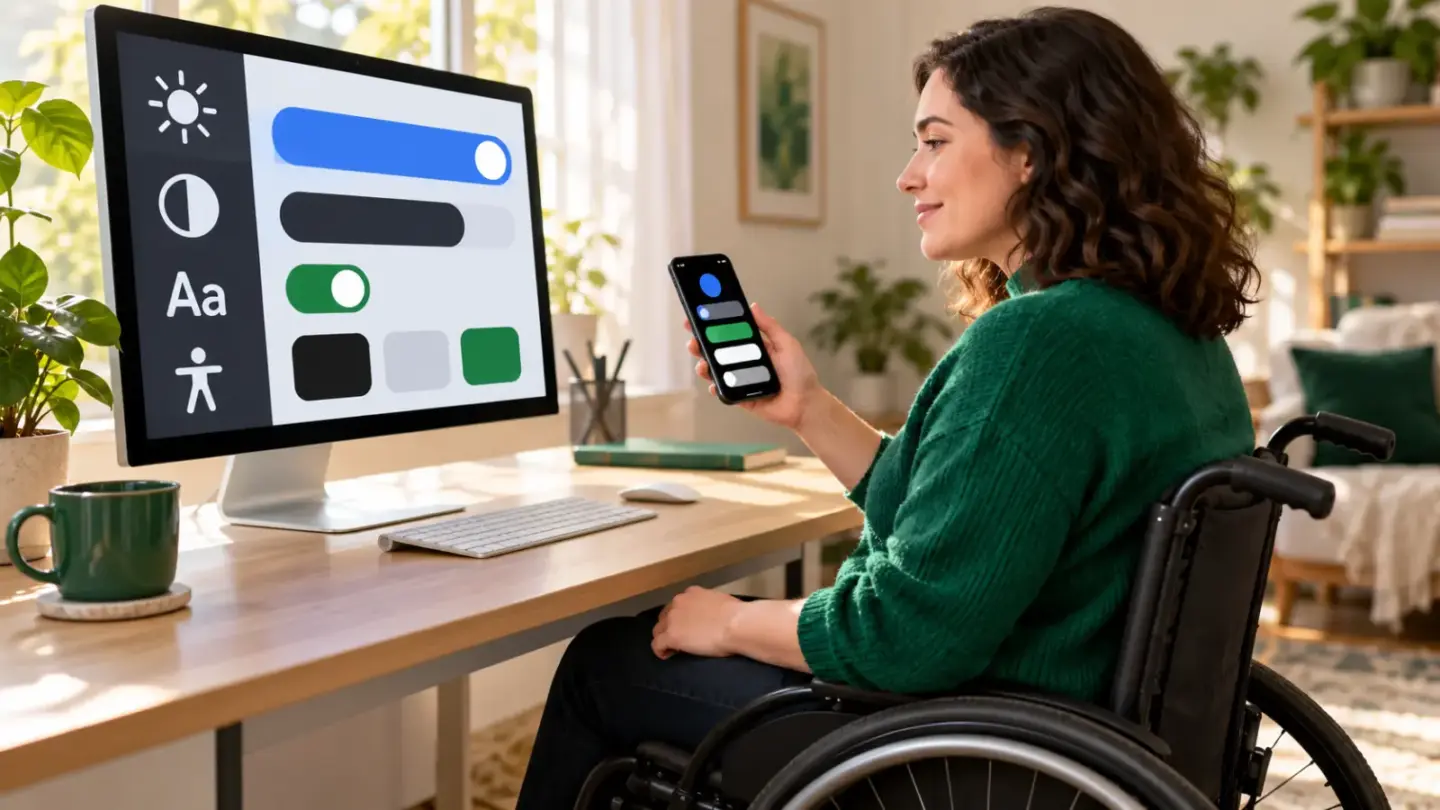
Apple’s iPhone guidance groups accessibility tools for vision, hearing, mobility, speech and cognitive needs. Its Mac documentation separately describes tools such as VoiceOver, Zoom and display adjustments. The existence of similar names across devices does not mean every feature behaves identically.
Google’s Android overview describes font and display sizing, magnification and TalkBack. Microsoft lists Windows tools including Magnifier, contrast settings and Narrator. These provide useful starting points for a demonstration on the actual device.
Try a realistic reading task rather than viewing only the settings screen. Increase text size and check whether important buttons remain visible. For spoken access, test navigation order, control labels and reading of a short document. A screen reader being available does not make every third-party interface accessible.
| Need | Feature to explore | Useful demonstration |
|---|---|---|
| Reading and navigation | Text scaling, magnification, contrast or screen reader | Read and complete a harmless sample form |
| Audio information | Captions, visual alerts or hearing-device compatibility | Follow a sample call or video in the required language |
| Alternative input | Keyboard navigation, voice or switch control | Open an app, edit text and correct a mistake |
| Focus and comprehension | Reduced motion, simplified display or reading support | Complete a familiar task without unwanted interruptions |
| Daily reliability | Shortcuts, manual fallback and support | Recover from an accidental setting change |
Check hearing and caption features in context
Explore captions, visual alternatives to sounds and audio settings on the platforms being considered. Test the language and content types you actually use. Captions supplied by a video, captions generated by the operating system and a meeting application’s captions can be different services.
Apple’s Mac documentation notes hardware, language and regional limits for Live Captions and warns that accuracy can vary. Do not rely on automatic captions as the sole source for a high-risk or emergency situation. A successful demonstration with one short clip does not prove accuracy for every speaker or environment.
If a hearing device or other assistive accessory is involved, confirm the exact compatibility list and supported functions. Pairing alone may not demonstrate calling, streaming, microphone or control behaviour. Where possible, try the actual accessory combination with the person’s consent.
Test alternative ways to control the device
Microsoft describes options such as voice access, an on-screen keyboard and adjustments to mouse and keyboard behaviour. Google’s overview includes interaction tools and switch or keyboard access. Apple provides corresponding controls on supported products, with platform-specific setup and requirements.
Use a harmless sequence: open an app, select a field, enter a sentence, correct an error and save a sample. Check how easily the user can recover from a mistaken action. The ability to perform one command is less informative than completing the whole task.
Consider posture, reach, fatigue and accessory placement without assuming that software alone solves every physical constraint. A different keyboard, stand or pointing device may be part of the setup. If specialist assessment is useful, include that in the decision rather than guessing an ergonomic solution from a feature brochure.
- Start the task using the intended input method.
- Read or hear the information needed to act.
- Make a selection and correct a deliberate harmless error.
- Finish, find the saved result and return to a familiar screen.
Check version, language and app compatibility
Record the exact model and operating-system version demonstrated. A store device may run different software from an older product on sale. Check whether required features need a particular processor, downloadable component or supported language.
Test essential third-party apps separately. A platform’s accessibility documentation describes available tools, while an app controls much of its own interface. Forms, authentication steps and document viewers can introduce barriers even when the home screen works well.
Ask about updates and support duration, including whether the required app supports the proposed device. Avoid assuming that a future update will repair a current barrier unless there is a clear commitment you are prepared to rely on.
Protect privacy during a demonstration
Use sample documents and harmless content for testing. Do not enter private medical, financial or account information into a shop display device merely to demonstrate a workflow. Ask the provider to explain what any cloud-based feature processes and which permissions it needs.
Some accessibility tools need broad access to interface content to perform their function. Read the operating-system explanation and the provider’s current privacy information. A legitimate need for access does not remove the importance of understanding which organisation receives information.
If another person helps with setup, agree on what they will change and how the user can manage it afterwards. Support should preserve the user’s choices and access rather than leave them dependent on someone else’s personal account.
Include accessories, setup and support in the price
Consider a fictional device costing 600, an input accessory costing 80 and an optional setup service costing 40. The initial setup total is 720. If a separate required service costs 5 monthly, the first-year planning total becomes 780.
Another fictional device priced at 700 with the needed accessory included would start at 700, but the comparison is meaningful only if both setups perform the required tasks. A lower total cannot compensate for a critical access barrier.
Check which accessibility features are built in before paying for an additional product. Also ask about training, support formats and return conditions. An accessible support channel may matter when a later update changes the way a tool behaves.
- 600 device + 80 accessory + 40 setup = 720 initially.
- Optional stated service: 5 × 12 = 60 annually.
- First-year total with that service: 780.
- Compare working task coverage before comparing totals.
Keep a purchase record based on demonstrated needs
Save the model, tested tasks, feature settings and unresolved questions. Ask for relevant return or trial terms in an accessible format. If a required task cannot be tested before purchase, treat it as unresolved rather than marking it passed because a feature appears in the specification.
Use our monthly budget tool for ongoing costs and the savings growth tool for an illustrative purchase plan. Read our accessibility statement for this site’s approach. No checklist can certify every user’s experience, but clear task evidence makes a purchasing decision more informed.
Related guides
Continue with Buying a Refurbished Laptop: Battery, Warranty and Support-Life Checks and Smartphone Update Support and Total Ownership Cost: What to Check. Each guide identifies its scope and any country-specific rules.
Common questions
Does having a screen reader mean every app is accessible?
No. The operating system provides the tool, while app structure and labels affect the experience. Test the essential app and task on the actual setup.
Should I choose features solely from a disability label?
No. Ask the person about preferred methods and real tasks. Needs, environments and comfort differ, including among people with similar diagnoses or access requirements.
Can text scaling hide controls or content?
It can reveal layout problems in some interfaces. Test important forms and applications at the intended size rather than assuming a settings preview represents every screen.
Are automatic captions reliable for emergency information?
Do not rely on them as the sole source in high-risk situations. Accuracy and availability vary, and Apple’s cited documentation explicitly describes relevant limitations.
Does Bluetooth pairing prove complete accessory compatibility?
No. Calling, streaming, controls and microphone functions can have separate requirements. Check the exact manufacturer compatibility information and demonstrate the functions you need.
Why test correcting an error?
Recovery is part of everyday use. A tool that performs one command but makes correction difficult may not support the complete task comfortably or independently.
Can I assume a feature works in every language?
No. Language, region, model and operating-system requirements can differ. Verify the specific feature on the device and language you intend to use.
Should I use personal accounts on a display device?
Prefer sample content and harmless test tasks. Avoid exposing private information just to demonstrate a workflow, and understand any permissions or cloud processing involved.
Are the example devices and service prices real offers?
No. They are invented amounts illustrating complete-setup budgeting. Obtain current quotations and verify that the required tasks work before making a purchase decision.
What if an essential task cannot be tested before purchase?
Keep it marked as unresolved and examine the support and return arrangements. A specification entry is useful evidence of a feature, not proof of task success.